
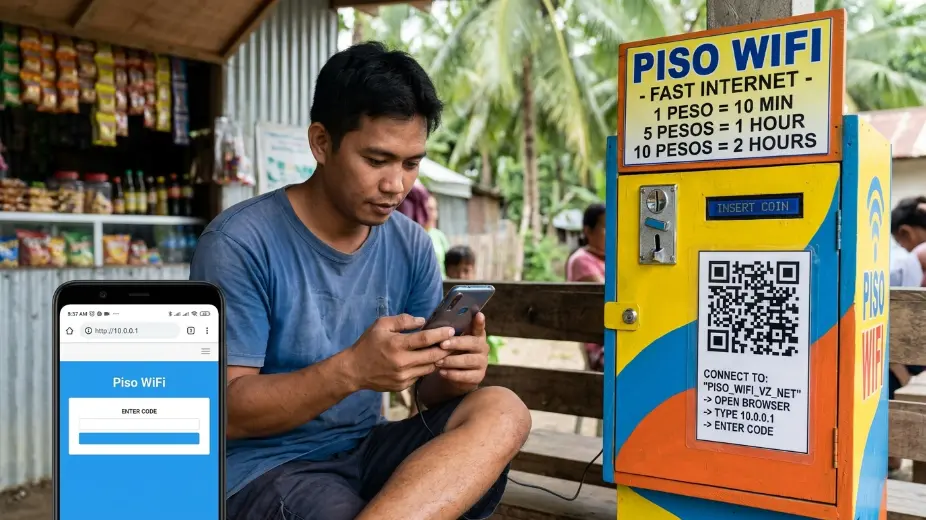
If you are searching for 10.0.0.1 piso wifi pause time, this guide will help you understand the real address, the pause feature, and how Piso WiFi works in simple words. The correct local IP is 10.0.0.1, not 10.0.0.0.1, and it is used inside private networks, not on the public internet.
Piso WiFi is a prepaid internet setup where users pay for access in small time blocks. In many systems, the 10.0.0.1 page is the place where the owner manages settings and where users may see their portal. TP-Link explains that this address is used as the control center for Piso WiFi settings, session time, pricing, bandwidth, and user access.
What Is 10.0.0.1?
10.0.0.1 is a private IP address. IANA says private-use IPv4 addresses include the full 10.0.0.0 to 10.255.255.255 range, and these addresses are reserved for private networks. They should never appear on the public internet.
That means 10.0.0.1 is often used inside homes, shops, and WiFi setups as a local gateway address. It helps devices talk to the router or portal without going outside the local network. NetSpot also explains that 10.0.0.1 belongs to the private IP block used for LANs and router admin access.
What Is 10.0.0.0.1?
10.0.0.0.1 is not a real IP address. It has one extra zero, so it is invalid. NetSpot clearly says the page does not exist and that users often mix it up with 10.0.0.1 because the two look similar.
This is a common typing mistake. Many people type the extra zero and then think the router is broken. In most cases, the fix is simple: remove the extra zero and use the correct address, 10.0.0.1.
Why People Use 10.0.0.1 in Piso WiFi
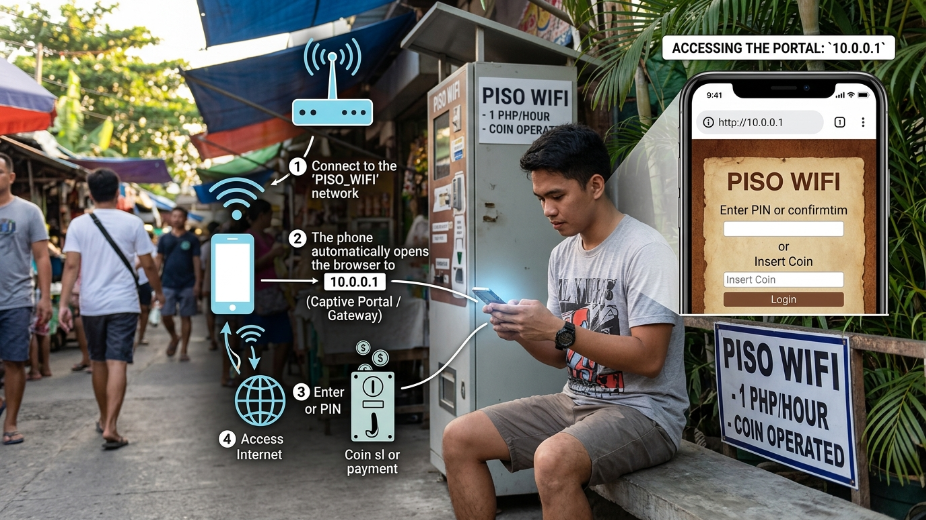
TP-Link says 10.0.0.1 is the default gateway used by TP-Link Piso WiFi routers to access the admin panel. From that dashboard, operators can control session time, pricing, bandwidth limits, and revenue tracking.
For a Piso WiFi owner, this address is very important. It is the place where the network is managed. For a user, it is often the page where the session starts and where the paid time is shown. TP-Link explains that the system is designed for prepaid internet use in communities, waiting areas, and small businesses.
What Does Pause Time Mean?
“Pause time” means the internet session stops for a while, and the timer freezes. TP-Link’s guide says the user can pause the session and return later to continue using the remaining time.
This is a very useful feature for paid WiFi. If a person steps away for a short break, the minutes do not keep running. That helps the user save credit and feel more in control of the session.
Why Pause Time Is Helpful
Pause time helps both users and owners. TP-Link says the feature improves flexibility and user experience, and it helps users avoid wasting time when they are not online.
It also makes the service feel fair. A customer who pays for WiFi wants to use the time wisely. A pause option makes the service more practical for real life, where people often need to step away for calls, work, or errands.
How Piso WiFi Usually Works
Piso WiFi is a prepaid internet system. Users pay in small amounts and get internet for a set time. TP-Link describes it as a pay-as-you-go model that is common in Philippine communities and commercial spaces.
The process is simple. A user connects to the WiFi network, opens the portal page, pays for access, and starts the session. The system then keeps track of time and may allow pause and resume if the owner enables that feature.
How to Open the 10.0.0.1 Page
To open the page, first connect your device to the Piso WiFi network. Then open a browser and type http://10.0.0.1 in the address bar, not the search bar. TP-Link gives this exact step in its admin guide.
If the page opens, you may see a login screen. After that, the admin can enter the username and password to reach the dashboard. TP-Link says the default for most TP-Link routers is username admin and password admin, unless the owner changed it.
What Owners Can Do in the Admin Panel
The admin panel gives the owner a lot of control. TP-Link says the dashboard can be used to set session durations, adjust pricing, monitor active devices, change bandwidth rules, and manage security settings.
Owners can also reboot the router, track revenue, and change how the portal works. This is why 10.0.0.1 is such an important address in a Piso WiFi setup. It is not just a login page. It is the control room for the whole system.
How to Enable Pause Time
TP-Link says admins can enable pause time by connecting to the Piso WiFi network, opening the admin portal at http://10.0.0.1/admin, and logging in with the administrator username and password.
After logging in, the owner can go to the portal settings or system settings, depending on the firmware or setup. TP-Link says the pause feature can then be turned on, and in some systems, the owner can also set a pause limit.
What Users See When Pause Time Is On
When pause time is enabled, the portal may show a button or option for pausing the session. The exact screen can change from one Piso WiFi setup to another, but the idea is the same: stop the timer now and continue later.
TP-Link explains that the timer freezes when the session is paused. When the user comes back and resumes the session, the remaining time is still there.
Why 10.0.0.0.1 Causes Confusion
The typo happens because the numbers look almost the same. NetSpot says even network users sometimes type 10.0.0.0.1 by mistake, but that version does not work because IPv4 addresses only have four numbers.
This small typing error can cause a lot of confusion. A person may keep trying to open the page and think the WiFi is down. In truth, the problem is often just the wrong address in the browser.
Common Problems and Easy Fixes
Sometimes a user cannot open 10.0.0.1. TP-Link says the first thing to check is whether the device is actually connected to the Piso WiFi network. If the device is on mobile data or another network, the portal may not load.
Another common fix is to clear the browser cache, use an incognito window, or restart the router. TP-Link also says some routers may use a different private IP address such as 192.168.1.1 instead of 10.0.0.1, so checking the router label or manual can help.
What If the pause button does not show up?
If the pause button is missing, the feature may be turned off in the admin settings. TP-Link says pause time has to be enabled by the owner. If it is not enabled, users will not see it.
Some systems also use pause limits or session rules. That means a user may only be allowed to pause for a certain amount of time before the session ends. TP-Link notes that these settings depend on the firmware and the owner’s setup.
Is 10.0.0.1 a public internet address?
No. IANA says private-use IP ranges like 10.0.0.0 to 10.255.255.255 are reserved for private networks and should not appear on the public internet. That is why the address is used inside a local WiFi setup and not as a public website address.
This is also why users must be connected to the local network before trying to open the portal. The address is made for internal network control, not public browsing.
Why This System Works Well for Small Businesses
Piso WiFi is popular because it gives low-cost internet access to many people. TP-Link describes it as a prepaid system that works well in communities, waiting areas, and business spaces.
For a small business, this can be a simple way to offer internet without complicated billing. The owner can set time rules, pricing, and bandwidth, while users can pay only for the time they need.
Simple Steps for a User
Here is the easiest way to understand the user side:
Connect to the Piso WiFi network.
Open a browser.
Type http://10.0.0.1 in the address bar.
Pay or log in through the portal.
Start the session.
Use pause time if the system allows it.
That is the basic flow. Some portals may look different, but the main idea stays the same. The user connects, starts time, and may pause and resume later if the owner has switched that feature on.
Simple Steps for an Owner
For owners, the flow is also easy to understand:
Connect to your Piso WiFi network.
Open http://10.0.0.1/admin in a browser.
Log in with the admin credentials.
Go to the settings area.
Turn on pause time if needed.
Save the changes and test the portal.
TP-Link says owners can also adjust session time, pricing, and bandwidth from the same dashboard. That makes 10.0.0.1 the main control point for the whole Piso WiFi system.
Best Tips for Users
Always type the correct IP address.
Use 10.0.0.1, not 10.0.0.0.1.
Stay connected to the Piso WiFi network when opening the portal.
Pause only when you really need a break.
Resume from the same session if possible.
These simple habits can save time and prevent confusion. Most login problems come from the wrong address, the wrong network, or a feature that has not been turned on yet.
Best Tips for Owners
Use a strong admin password.
Check the portal after every setting change.
Turn on pause time only if it fits your business model.
Set fair time limits for users.
Keep the router label and manual in a safe place.
TP-Link also recommends checking the router sticker if the system does not use 10.0.0.1. Some routers use 192.168.1.1 or 192.168.0.1 instead.
FAQ About 10.0.0.0.1 and 10.0.0.1
Is 10.0.0.0.1 a real IP?
No. It has one extra zero and does not exist as a valid IPv4 address.
Is 10.0.0.1 private or public?
It is private. IANA lists it in the private-use range for internal networks.
Why do Piso WiFi systems use 10.0.0.1?
TP-Link says it is the default gateway for some Piso WiFi routers and the place where owners manage sessions, pricing, and bandwidth.
What does pause time do?
It stops the session timer for a while and lets the user continue later with the remaining time.
What if 10.0.0.1 does not open?
Check that you are on the correct WiFi network, use the address bar, and make sure your router actually uses that IP. TP-Link says some routers use a different private address.
Final Thoughts
The main thing to remember is simple. 10.0.0.1 is the correct private router IP used in many Piso WiFi systems, while 10.0.0.0.1 is just a typo. IANA confirms that 10.0.0.0/8 is a private-use range, and TP-Link explains how this address is used for the Piso WiFi admin panel.
Pause time is a helpful feature because it lets users stop the timer and come back later without losing the rest of their paid time. That is why it is so useful for both users and owners.
Also Read

Add a Comment