
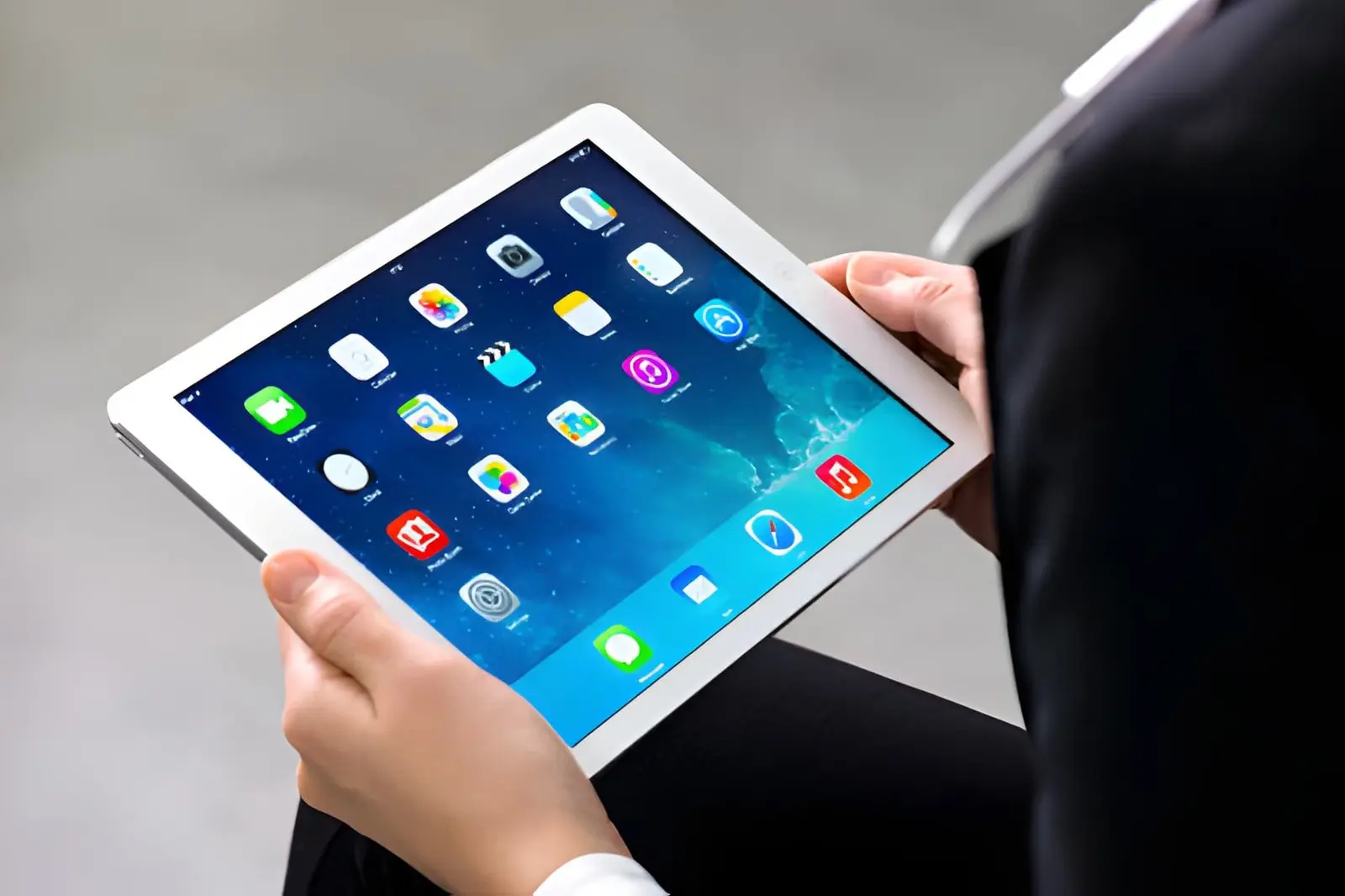
iPad rental for events supports custom branding by allowing providers to pre-load devices with branded wallpapers, lock screens, apps, and restricted navigation before dispatch. Every attendee picks up a device that looks and behaves exactly as the organiser intended, with no setup required on the day and no risk of visitors straying outside the branded experience.
Why Branded Devices Make a Difference at Events
Walk around a well-run exhibition stand or a corporate product launch and you will notice something about the technology on display. Devices are not just functional tools sitting on a table. They are part of the brand experience. Companies that invest in ipad rental for events specifically to support custom branding get more out of their stand than those who simply hand over generic devices and hope for the best.
A device with your logo on the lock screen, your brand colours in the interface, and only your approved content available to visitors sends a clear message about how seriously you take your presentation. It also removes distractions and keeps attendees focused on exactly what you want them to see.
This guide covers how the branding and pre-loading side of iPad hire actually works in practice, what you can configure, and what to look for in a provider that delivers this properly.
What Pre-Configuration Actually Means
Pre-configuration is the process of setting up every device before it leaves the rental provider’s facility. For branding purposes, this goes well beyond simply installing an app. Done properly, it covers every layer of the user experience from the moment the device is switched on.
Most businesses renting iPads for events are not technology companies. They should not have to spend the morning of an event updating software, logging into accounts, and adjusting settings on twenty devices. Pre-configuration removes all of that.
What Can Be Pre-Configured on a Rental iPad
• Lock screen and home screen wallpaper with your brand logo and colours
• Custom app layout showing only the apps relevant to your event
• Pre-loaded documents, videos, brochures, and product catalogues
• Login credentials for specific apps or platforms
• Kiosk mode or guided access to restrict navigation to approved content
• Wi-Fi profiles so devices connect automatically at the venue
• Screensaver settings to display brand content during idle periods
• Passcode or access restrictions to prevent unauthorised changes
When all of that is done before the devices arrive at your venue, your team can focus on the event rather than on setup. Devices come out of the box, get placed on stands or handed to delegates, and they are ready to use.
Branding Touchpoints You Can Control
Branding on a rental iPad is not limited to putting a logo somewhere visible. There are several distinct touchpoints across the device experience, and each one is an opportunity to reinforce your identity or guide attendee behaviour.
1. Lock Screen and Home Screen
These are the first things a visitor sees. A well-designed lock screen with your event name, logo, and a clean visual creates an immediate professional impression. Home screens can be arranged to show only the apps you want, laid out in a logical order that matches your event flow.
2. App Content and In-App Branding
Apps loaded onto rental iPads can themselves be branded. If you are using a lead capture app, a product demo platform, or a digital catalogue tool, most of these allow custom logos, colour schemes, and content within the app itself.
For iPad rental for exhibitions, this is particularly relevant. Visitors browsing your product range or filling in a contact form should see your branding at every step, not the default interface of a third-party app.
3. Idle and Screensaver Content
When a device is not actively in use, it can continue working for you. Screensavers and auto-play video loops keep your brand visible during quieter periods and can serve as passive marketing to anyone walking past your stand.
Guided Access and Kiosk Mode Explained
Two features that come up regularly in event iPad setups are Guided Access and kiosk mode. Both achieve a similar result through slightly different means: they lock the device to a specific app or set of apps so visitors cannot navigate outside your intended experience.
Guided Access is a built-in iOS feature that restricts the device to a single app and can disable specific areas of the screen. Kiosk mode, which is typically managed through a mobile device management platform, offers more control across multiple apps and is better suited to deployments where visitors need to move between two or three approved tools. Providers like The Tekk Group can configure either approach depending on your event requirements, ensuring devices behave exactly as planned from the moment they are handed to an attendee.
When to Use Guided Access vs Kiosk Mode
| Feature | Guided Access | Kiosk Mode (MDM) |
| App restriction | Single app only | One or multiple approved apps |
| Setup complexity | Simple, built-in iOS feature | Requires MDM configuration |
| Best for | Simple demo or survey stations | Multi-app event workflows |
| Remote management | No | Yes |
| Screen area restrictions | Yes | Varies by MDM platform |
| Suitable for trade shows | Yes, for focused demos | Yes, for full event setups |
Pre-Loaded Content: What Works Well
The content you load onto rental iPads shapes the entire attendee experience. Getting the selection and format right makes a noticeable difference to how visitors engage with your stand or session.
Video content tends to perform well on iPads at events. A short product demonstration or brand story plays clearly on a retina display and does not require a presenter to be physically present at all times. Visitors can watch at their own pace.
Digital brochures and product catalogues work better as native PDF files or purpose-built app content than as web pages, particularly if your venue has unreliable Wi-Fi. Hosting content locally on the device means it loads instantly and does not depend on a connection.
Content Formats That Work Best on Event iPads
• PDF brochures and product sheets stored locally on the device
• MP4 video files for product demos or brand content
• Interactive presentation apps with touch navigation
• Lead capture forms through dedicated apps
• Image galleries for portfolio or product range display
• Surveys and feedback forms for delegate engagement
One thing worth planning for is content that works offline. iPad rental for trade shows often runs into venue Wi-Fi problems, particularly at large events where hundreds of exhibitors are competing for bandwidth. Anything business-critical should be available without a live internet connection.
How to Brief Your Provider on Branding Requirements
The quality of your branded device setup depends heavily on how clearly you brief your rental provider. Vague instructions produce inconsistent results. A detailed brief produces devices that match your expectations when they arrive.
Most experienced providers will ask for your requirements in advance through a configuration form or setup document. Give yourself enough time to prepare this properly rather than rushing it close to the event date.
What to Include in Your Configuration Brief
1. Brand assets: high-resolution logo files, approved colour hex codes, font files if applicable
2. Screen designs: wallpaper and lock screen artwork at the correct resolution for the iPad model being rented
3. App list: every app to be installed, with login credentials or licence keys where needed
4. Content files: all documents, videos, and images to be pre-loaded, organised clearly
5. Navigation restrictions: whether you need Guided Access, kiosk mode, or open access with approved apps only
6. Network settings: Wi-Fi network name and password for auto-connection at the venue
7. A test verification checklist: what your team will check when devices arrive to confirm correct setup
Sending a sample device back to the provider for a review before the full fleet is configured can save considerable time if anything needs adjusting. Most providers working on event iPad rental service deployments will accommodate this.
iPad Rental vs Buying Your Own Devices for Events
| Factor | Renting iPads | Buying iPads |
| Upfront commitment | None | High |
| Pre-configuration support | Included with good providers | Your responsibility |
| Storage between events | Not needed | You manage it |
| Quantity flexibility | Scale up or down per event | Fixed fleet |
| Hardware currency | Current models available | Depreciates over time |
| Post-event data wipe | Handled by provider | Your responsibility |
| Best for | Occasional or varied events | Frequent, consistent deployments |
Making Branded iPad Rental Work for Your Event
Custom branding and pre-loaded content on rental iPads is not a luxury for large corporate budgets. It is a practical approach to event presentation that any business can use to make their stand, training session, or product launch look more polished and run more smoothly.
Getting it right comes down to three things: choosing a provider with genuine pre-configuration capability, briefing them clearly and early, and testing before the event opens.
For businesses looking for a provider that handles branded iPad setups properly, The Tekk Group is worth talking to. They work with companies on event iPad hire across the US, handle configuration as part of the service, and understand the practical demands of live event environments. It is the kind of provider that has dealt with the real-world challenges before, which makes preparation considerably less stressful.
Frequently Asked Questions
1. Can I have my company logo and brand colours on rented iPads?
Yes. Reputable providers pre-configure rental iPads with your lock screen artwork, home screen wallpaper, and branded app layouts before dispatch. You supply the design assets and the provider handles the setup across every device in your order.
2. What is kiosk mode on a rental iPad and when should I use it?
Kiosk mode locks the iPad to one or more approved apps, preventing visitors from navigating to anything outside your intended experience. It is managed through a mobile device management platform and is well suited to trade show stands, product demos, and self-service registration stations where you need consistent, controlled visitor interaction.
3. Can pre-loaded content on rental iPads work without Wi-Fi?
Yes, if content is stored locally on the device rather than hosted in the cloud or accessed via a browser. For iPad rental for exhibitions and trade shows where venue connectivity is unreliable, ask your provider to confirm that all critical content is stored on the device itself.
4. How far in advance do I need to submit branding assets for a rental iPad setup?
For straightforward branded setups, one to two weeks is usually workable. For complex configurations involving multiple apps, custom profiles, and large content libraries, two to three weeks is more realistic. Check lead times with your provider when you book rather than leaving it to the last week.
5. What happens to my branded content and company data when iPads are returned?
A reputable provider will fully wipe every device after return, removing all apps, content, accounts, and configuration profiles. For events where devices have been used to collect visitor or customer data, confirm this process with your provider before the event and request written confirmation if needed for compliance purposes.
6. Can different iPads at the same event be configured differently?
Yes. Providers can configure different batches of devices within the same order with different apps, content, or layouts. This is useful when some devices are used for lead capture while others run product demos, or when different event zones need different experiences.
7. Is iPad hire for events suitable for large-scale conferences and exhibitions?
Yes. Experienced providers manage large deployments regularly, supplying anywhere from a handful of devices to several hundred for major events. For large orders, confirm availability and lead times early, particularly during peak event seasons in spring and autumn.
8. What iPad models are typically available through event rental providers?
Most providers stock current and recent-generation iPad models, including standard iPad, iPad Air, and iPad Pro. For event use, the standard iPad or iPad Air covers most requirements well. iPad Pro is worth considering for high-resolution video content or demanding interactive applications.
Also Read

Add a Comment